---
title: How to Sign in to the App for the First Time
description: Easily sign in to the MakeShift app for the first time by creating a password from your welcome email.
---
[Skip to content](https://support.makeshift.ca/how-to-sign-in-to-the-app-for-the-first-time#main-content)
[Customer portal](https://support.makeshift.ca/ticketportal?hsLang=en-ca)
[](https://support.makeshift.ca/?hsLang=en-ca)
- [Back to MakeShift](https://makeshift.ca/)
- +1-587-390-2068
- [Sign In](https://app.makeshift.ca/)
Open main navigation
Close main navigation
- [Back to MakeShift](https://makeshift.ca/)
- +1-587-390-2068
- [Sign In](https://app.makeshift.ca/)
- [Customer portal](https://support.makeshift.ca/ticketportal)
- [Submit a ticket](https://support.makeshift.ca/submit-a-request-for-support)
[Submit a ticket](https://support.makeshift.ca/submit-a-request-for-support?hsLang=en-ca)
What can we help you with?
- There are no suggestions because the search field is empty.
1. [MakeShift Support](https://support.makeshift.ca/?hsLang=en-ca)
2. [Users/Employees](https://support.makeshift.ca/users-employees?hsLang=en-ca)
3. [Android](https://support.makeshift.ca/users-employees?hsLang=en-ca#android)
# How to Sign in to the App for the First Time
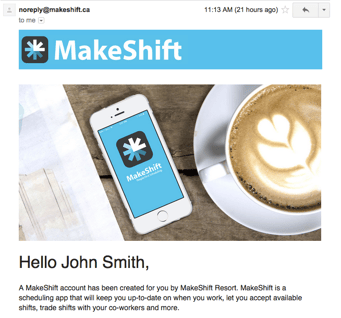
To sign in to the MakeShift app for the first time, you need to create a password. This can be done from the welcome email that was sent to you when your employer signed you up for MakeShift. If you have not received this email, please speak with your employer to check that they have your correct email address on file.
Check your email inbox for your MakeShift welcome email. It will be sent from noreply@makeshift.ca with the subject line **(name of company) has invited you to MakeShift.**
Click the **Activate Account** button to direct you to a page where you can set your password.
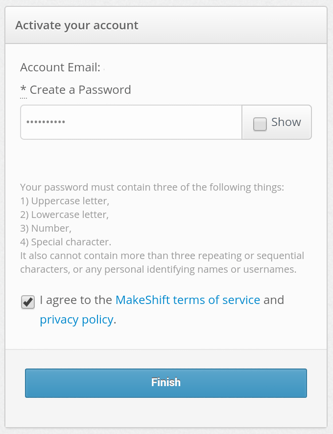
Your password must contain three of the following things: 1) Uppercase letter, 2) Lowercase letter, 3) Number, 4) Special character. It also cannot contain more than three repeating or sequential characters, or any personal identifying names or usernames. Once you have set your password, you must agree to the Makeshift terms of service and privacy policy, then click "**Finish.**"
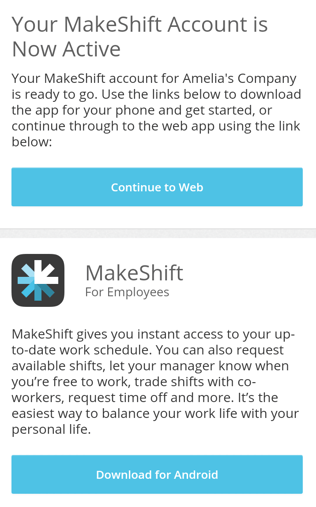
Next, the page will provide you with a link to download the app. Click the button **Download for Android**. If you have already downloaded the app, skip this step. If you need help downloading the app, please see our article on **[How to Download the App](https://19916410.hs-sites.com/how-to-download-the-app-android?hs_preview=jpGhOtEE-156198417439&hsLang=en-ca).**
Once you download the app, login for the first time using your email and new password. You can now see your scheduled shifts and access features that you can use to set your availability, request time off and exchange shifts with coworkers.
- [Getting Started](https://support.makeshift.ca/getting-started-guides?hsLang=en-ca#main-content)
- [Printable Guides (PDF)](https://support.makeshift.ca/getting-started-guides?hsLang=en-ca#printable-guides-pdf)
- [General](https://support.makeshift.ca/general?hsLang=en-ca#main-content)
- [FAQ](https://support.makeshift.ca/general?hsLang=en-ca#faq)
- [Admins/Managers](https://support.makeshift.ca/admins-managers?hsLang=en-ca#main-content)
- [Account Details](https://support.makeshift.ca/admins-managers?hsLang=en-ca#account-details)
- [Company Account Settings](https://support.makeshift.ca/admins-managers?hsLang=en-ca#company-account-settings)
- [The Schedule](https://support.makeshift.ca/admins-managers?hsLang=en-ca#the-schedule)
- [Locations and Departments](https://support.makeshift.ca/admins-managers?hsLang=en-ca#locations-and-departments)
- [Employees](https://support.makeshift.ca/admins-managers?hsLang=en-ca#employees)
- [Analytics](https://support.makeshift.ca/admins-managers?hsLang=en-ca#analytics)
- [Time & Attendance](https://support.makeshift.ca/admins-managers?hsLang=en-ca#time-attendance)
- [MakeShift Live for iOS](https://support.makeshift.ca/admins-managers?hsLang=en-ca#makeshift-live-for-ios)
- [MakeShift Live for Android](https://support.makeshift.ca/admins-managers?hsLang=en-ca#makeshift-live-for-android)
- [ADP Client Resources](https://support.makeshift.ca/admins-managers?hsLang=en-ca#adp-client-resources)
- [BambooHR Client Resources](https://support.makeshift.ca/admins-managers?hsLang=en-ca#bamboohr-client-resources)
- [Quickbooks Time Client Resources](https://support.makeshift.ca/admins-managers?hsLang=en-ca#quickbooks-time-client-resources)
- [New MakeShift](https://support.makeshift.ca/admins-managers?hsLang=en-ca#new-makeshift)
- [Users/Employees](https://support.makeshift.ca/users-employees?hsLang=en-ca#main-content)
- [Android](https://support.makeshift.ca/users-employees?hsLang=en-ca#android)
- [iOS](https://support.makeshift.ca/users-employees?hsLang=en-ca#ios)
- [Web](https://support.makeshift.ca/users-employees?hsLang=en-ca#web)
- [Users/Employees FAQ](https://support.makeshift.ca/users-employees?hsLang=en-ca#users-employees-faq)
- [Video Tutorials](https://support.makeshift.ca/video-tutorials?hsLang=en-ca)
- [Apps](https://support.makeshift.ca/apps?hsLang=en-ca#main-content)
- [MakeShift Admin/Managers](https://support.makeshift.ca/apps?hsLang=en-ca#makeshift-admin-managers)
- [MakeShift Employees](https://support.makeshift.ca/apps?hsLang=en-ca#makeshift-employees)
- [Admins/Managers (BETA)](https://support.makeshift.ca/admins-managers-beta?hsLang=en-ca#main-content)
- [Location and Departments (BETA)](https://support.makeshift.ca/admins-managers-beta?hsLang=en-ca#location-and-departments-beta)
- [Employees (BETA)](https://support.makeshift.ca/admins-managers-beta?hsLang=en-ca#employees-beta)
- [The Schedule (BETA)](https://support.makeshift.ca/admins-managers-beta?hsLang=en-ca#the-schedule-beta)
- [Account Details (BETA)](https://support.makeshift.ca/admins-managers-beta?hsLang=en-ca#account-details-beta)
- [Contact Support](https://support.makeshift.ca/contact-support-now?hsLang=en-ca)
- [Enterprise](https://support.makeshift.ca/enterprise?hsLang=en-ca#main-content)
- [Time & Attendance for Enterprise Clients](https://support.makeshift.ca/enterprise?hsLang=en-ca#time-attendance-for-enterprise-clients)
[](https://makeshift.ca/)
Copyright ⓒ 2024 MakeShift | [Privacy Policy](https://makeshift.ca/privacy) | [Terms of Use](https://makeshift.ca/terms)
[mailto:email@email.com](mailto:email@email.com)