---
title: How to Import/Deactivate a User from BambooHR
description: Take control of your staff management with the Users tab in the main navigation bar. Import employees from BambooHR and assign them to specific locations and departments.
---
[Skip to content](https://support.makeshift.ca/how-to-import/deactivate-a-user-from-bamboohr#main-content)
[Customer portal](https://support.makeshift.ca/ticketportal?hsLang=en-ca)
[](https://support.makeshift.ca/?hsLang=en-ca)
- [Back to MakeShift](https://makeshift.ca/)
- +1-587-390-2068
- [Sign In](https://app.makeshift.ca/)
Open main navigation
Close main navigation
- [Back to MakeShift](https://makeshift.ca/)
- +1-587-390-2068
- [Sign In](https://app.makeshift.ca/)
- [Customer portal](https://support.makeshift.ca/ticketportal)
- [Submit a ticket](https://support.makeshift.ca/submit-a-request-for-support)
[Submit a ticket](https://support.makeshift.ca/submit-a-request-for-support?hsLang=en-ca)
What can we help you with?
- There are no suggestions because the search field is empty.
1. [MakeShift Support](https://support.makeshift.ca/?hsLang=en-ca)
2. [Admins/Managers](https://support.makeshift.ca/admins-managers?hsLang=en-ca)
3. [BambooHR Client Resources](https://support.makeshift.ca/admins-managers?hsLang=en-ca#bamboohr-client-resources)
# How to Import/Deactivate a User from BambooHR
To manage your staff, go to the People tab in the main navigation bar.

Here, you will see a tab for Users, Active and Archived.
The Users tab will show you all your staff from BambooHR that can be imported into MakeShift. You must import your users before you can start scheduling. To import your employees, select multiple employees, or all, and click **Import Selected**.
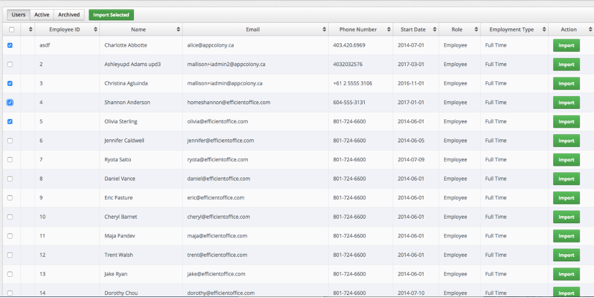
All users that are successfully synced will be shown in the ‘Active’ tab. If there was an error with importing employees, due to an invalid field, an error message will be displayed.
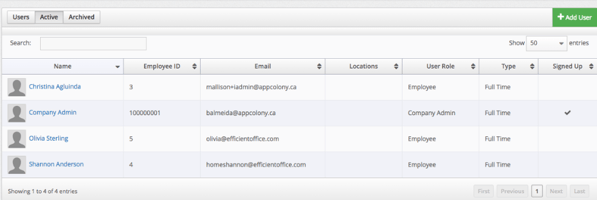
Once you have imported an employee from BambooHR, the imported user will show up on your MakeShift **People** list. You will then be able to assign the employee to his or her appropriate location(s) and department(s), as well as assign them an appropriate position.
Anytime a change is made in BambooHR to one of the fields we sync, it will automatically be updated in MakeShift.
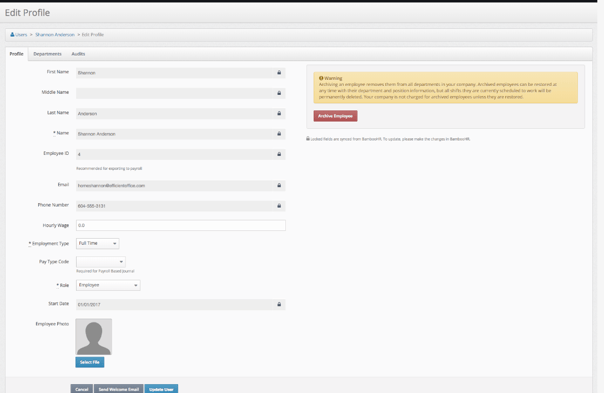
All information synced from BambooHR is read-only in MakeShift. This prevents administrators and employees from updating information in MakeShift that will immediately be overwritten by BambooHR. As BambooHR is the system of record, users are instructed to make any changes to their profile information in BambooHR.
- [Getting Started](https://support.makeshift.ca/getting-started-guides?hsLang=en-ca#main-content)
- [Printable Guides (PDF)](https://support.makeshift.ca/getting-started-guides?hsLang=en-ca#printable-guides-pdf)
- [General](https://support.makeshift.ca/general?hsLang=en-ca#main-content)
- [FAQ](https://support.makeshift.ca/general?hsLang=en-ca#faq)
- [Admins/Managers](https://support.makeshift.ca/admins-managers?hsLang=en-ca#main-content)
- [Account Details](https://support.makeshift.ca/admins-managers?hsLang=en-ca#account-details)
- [Company Account Settings](https://support.makeshift.ca/admins-managers?hsLang=en-ca#company-account-settings)
- [The Schedule](https://support.makeshift.ca/admins-managers?hsLang=en-ca#the-schedule)
- [Locations and Departments](https://support.makeshift.ca/admins-managers?hsLang=en-ca#locations-and-departments)
- [Employees](https://support.makeshift.ca/admins-managers?hsLang=en-ca#employees)
- [Analytics](https://support.makeshift.ca/admins-managers?hsLang=en-ca#analytics)
- [Time & Attendance](https://support.makeshift.ca/admins-managers?hsLang=en-ca#time-attendance)
- [MakeShift Live for iOS](https://support.makeshift.ca/admins-managers?hsLang=en-ca#makeshift-live-for-ios)
- [MakeShift Live for Android](https://support.makeshift.ca/admins-managers?hsLang=en-ca#makeshift-live-for-android)
- [ADP Client Resources](https://support.makeshift.ca/admins-managers?hsLang=en-ca#adp-client-resources)
- [BambooHR Client Resources](https://support.makeshift.ca/admins-managers?hsLang=en-ca#bamboohr-client-resources)
- [Quickbooks Time Client Resources](https://support.makeshift.ca/admins-managers?hsLang=en-ca#quickbooks-time-client-resources)
- [New MakeShift](https://support.makeshift.ca/admins-managers?hsLang=en-ca#new-makeshift)
- [Users/Employees](https://support.makeshift.ca/users-employees?hsLang=en-ca#main-content)
- [Android](https://support.makeshift.ca/users-employees?hsLang=en-ca#android)
- [iOS](https://support.makeshift.ca/users-employees?hsLang=en-ca#ios)
- [Web](https://support.makeshift.ca/users-employees?hsLang=en-ca#web)
- [Users/Employees FAQ](https://support.makeshift.ca/users-employees?hsLang=en-ca#users-employees-faq)
- [Video Tutorials](https://support.makeshift.ca/video-tutorials?hsLang=en-ca)
- [Apps](https://support.makeshift.ca/apps?hsLang=en-ca#main-content)
- [MakeShift Admin/Managers](https://support.makeshift.ca/apps?hsLang=en-ca#makeshift-admin-managers)
- [MakeShift Employees](https://support.makeshift.ca/apps?hsLang=en-ca#makeshift-employees)
- [Admins/Managers (BETA)](https://support.makeshift.ca/admins-managers-beta?hsLang=en-ca#main-content)
- [Location and Departments (BETA)](https://support.makeshift.ca/admins-managers-beta?hsLang=en-ca#location-and-departments-beta)
- [Employees (BETA)](https://support.makeshift.ca/admins-managers-beta?hsLang=en-ca#employees-beta)
- [The Schedule (BETA)](https://support.makeshift.ca/admins-managers-beta?hsLang=en-ca#the-schedule-beta)
- [Account Details (BETA)](https://support.makeshift.ca/admins-managers-beta?hsLang=en-ca#account-details-beta)
- [Contact Support](https://support.makeshift.ca/contact-support-now?hsLang=en-ca)
- [Enterprise](https://support.makeshift.ca/enterprise?hsLang=en-ca#main-content)
- [Time & Attendance for Enterprise Clients](https://support.makeshift.ca/enterprise?hsLang=en-ca#time-attendance-for-enterprise-clients)
[](https://makeshift.ca/)
Copyright ⓒ 2024 MakeShift | [Privacy Policy](https://makeshift.ca/privacy) | [Terms of Use](https://makeshift.ca/terms)
[mailto:email@email.com](mailto:email@email.com)