---
title: Reorder Employees on the Schedule
description: Optimize your employee schedule by easily reordering employees
---
[Skip to content](https://support.makeshift.ca/reorder-employees-on-the-schedule#main-content)
[Customer portal](https://support.makeshift.ca/ticketportal?hsLang=en-ca)
[](https://support.makeshift.ca/?hsLang=en-ca)
- [Back to MakeShift](https://makeshift.ca/)
- +1-587-390-2068
- [Sign In](https://app.makeshift.ca/)
Open main navigation
Close main navigation
- [Back to MakeShift](https://makeshift.ca/)
- +1-587-390-2068
- [Sign In](https://app.makeshift.ca/)
- [Customer portal](https://support.makeshift.ca/ticketportal)
- [Submit a ticket](https://support.makeshift.ca/submit-a-request-for-support)
[Submit a ticket](https://support.makeshift.ca/submit-a-request-for-support?hsLang=en-ca)
What can we help you with?
- There are no suggestions because the search field is empty.
1. [MakeShift Support](https://support.makeshift.ca/?hsLang=en-ca)
2. [Admins/Managers](https://support.makeshift.ca/admins-managers?hsLang=en-ca)
3. [The Schedule](https://support.makeshift.ca/admins-managers?hsLang=en-ca#the-schedule)
# Reorder Employees on the Schedule
Employee names show up on the schedule in the order that they are added. Whenever you add a new employee, they will always be added to the bottom of the schedule list. You can rearrange this order anytime by following these instructions.
Click on **Schedules** on the top navigation bar.

Select the name of a department to get to the schedule.

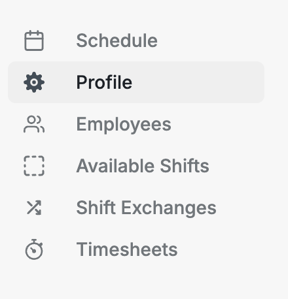
Click on **Profile** on the left navigation bar.
Click on **Edit Department.**
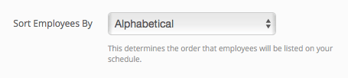
There are three options for reordering employees on the schedule. You can sort employees alphabetically, by employee start date, or manually. This will determine the order that your employees will be listed on the schedule.
Click **Update Department **to confirm.
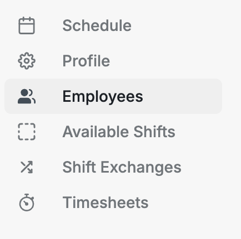
Your employees will automatically be reordered if you selected to sort your employees alphabetically or by employee start date. If you chose to manually sort, reorder your employees by clicking **Employees** on the left navigation bar.
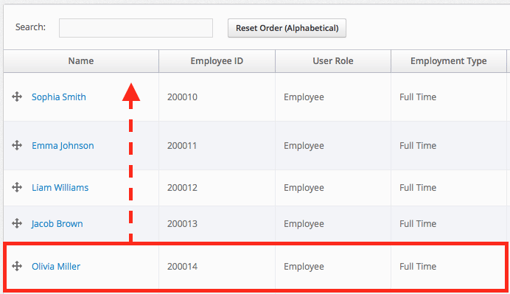
Click anywhere on an employee's row and drag and drop them to a new place on the list. This option allows you to sort your employees by employment type, position or any other kind of grouping you like.
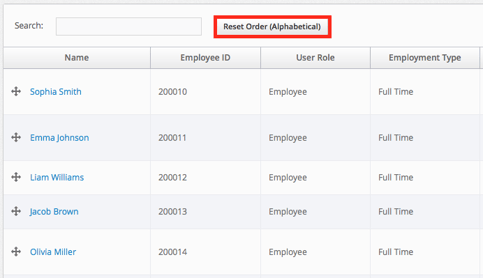
You can also return the order back to alphabetical if necessary.
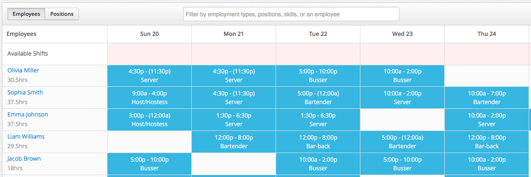
The new order is automatically saved and you will see the changes when you return to the schedule.
- [Getting Started](https://support.makeshift.ca/getting-started-guides?hsLang=en-ca#main-content)
- [Printable Guides (PDF)](https://support.makeshift.ca/getting-started-guides?hsLang=en-ca#printable-guides-pdf)
- [General](https://support.makeshift.ca/general?hsLang=en-ca#main-content)
- [FAQ](https://support.makeshift.ca/general?hsLang=en-ca#faq)
- [Admins/Managers](https://support.makeshift.ca/admins-managers?hsLang=en-ca#main-content)
- [Account Details](https://support.makeshift.ca/admins-managers?hsLang=en-ca#account-details)
- [Company Account Settings](https://support.makeshift.ca/admins-managers?hsLang=en-ca#company-account-settings)
- [The Schedule](https://support.makeshift.ca/admins-managers?hsLang=en-ca#the-schedule)
- [Locations and Departments](https://support.makeshift.ca/admins-managers?hsLang=en-ca#locations-and-departments)
- [Employees](https://support.makeshift.ca/admins-managers?hsLang=en-ca#employees)
- [Analytics](https://support.makeshift.ca/admins-managers?hsLang=en-ca#analytics)
- [Time & Attendance](https://support.makeshift.ca/admins-managers?hsLang=en-ca#time-attendance)
- [MakeShift Live for iOS](https://support.makeshift.ca/admins-managers?hsLang=en-ca#makeshift-live-for-ios)
- [MakeShift Live for Android](https://support.makeshift.ca/admins-managers?hsLang=en-ca#makeshift-live-for-android)
- [ADP Client Resources](https://support.makeshift.ca/admins-managers?hsLang=en-ca#adp-client-resources)
- [BambooHR Client Resources](https://support.makeshift.ca/admins-managers?hsLang=en-ca#bamboohr-client-resources)
- [Quickbooks Time Client Resources](https://support.makeshift.ca/admins-managers?hsLang=en-ca#quickbooks-time-client-resources)
- [New MakeShift](https://support.makeshift.ca/admins-managers?hsLang=en-ca#new-makeshift)
- [Users/Employees](https://support.makeshift.ca/users-employees?hsLang=en-ca#main-content)
- [Android](https://support.makeshift.ca/users-employees?hsLang=en-ca#android)
- [iOS](https://support.makeshift.ca/users-employees?hsLang=en-ca#ios)
- [Web](https://support.makeshift.ca/users-employees?hsLang=en-ca#web)
- [Users/Employees FAQ](https://support.makeshift.ca/users-employees?hsLang=en-ca#users-employees-faq)
- [Video Tutorials](https://support.makeshift.ca/video-tutorials?hsLang=en-ca)
- [Apps](https://support.makeshift.ca/apps?hsLang=en-ca#main-content)
- [MakeShift Admin/Managers](https://support.makeshift.ca/apps?hsLang=en-ca#makeshift-admin-managers)
- [MakeShift Employees](https://support.makeshift.ca/apps?hsLang=en-ca#makeshift-employees)
- [Admins/Managers (BETA)](https://support.makeshift.ca/admins-managers-beta?hsLang=en-ca#main-content)
- [Location and Departments (BETA)](https://support.makeshift.ca/admins-managers-beta?hsLang=en-ca#location-and-departments-beta)
- [Employees (BETA)](https://support.makeshift.ca/admins-managers-beta?hsLang=en-ca#employees-beta)
- [The Schedule (BETA)](https://support.makeshift.ca/admins-managers-beta?hsLang=en-ca#the-schedule-beta)
- [Account Details (BETA)](https://support.makeshift.ca/admins-managers-beta?hsLang=en-ca#account-details-beta)
- [Contact Support](https://support.makeshift.ca/contact-support-now?hsLang=en-ca)
- [Enterprise](https://support.makeshift.ca/enterprise?hsLang=en-ca#main-content)
- [Time & Attendance for Enterprise Clients](https://support.makeshift.ca/enterprise?hsLang=en-ca#time-attendance-for-enterprise-clients)
[](https://makeshift.ca/)
Copyright ⓒ 2024 MakeShift | [Privacy Policy](https://makeshift.ca/privacy) | [Terms of Use](https://makeshift.ca/terms)
[mailto:email@email.com](mailto:email@email.com)