---
title: Desktop Time Clock Mode
description: Easily track employee attendance with MakeShift's desktop time clock mode. No smartphone? No problem. Clock in and out directly from your computer.
---
[Skip to content](https://support.makeshift.ca/desktop-time-clock-mode#main-content)
[Customer portal](https://support.makeshift.ca/ticketportal?hsLang=en-ca)
[](https://support.makeshift.ca/?hsLang=en-ca)
- [Back to MakeShift](https://makeshift.ca/)
- +1-587-390-2068
- [Sign In](https://app.makeshift.ca/)
Open main navigation
Close main navigation
- [Back to MakeShift](https://makeshift.ca/)
- +1-587-390-2068
- [Sign In](https://app.makeshift.ca/)
- [Customer portal](https://support.makeshift.ca/ticketportal)
- [Submit a ticket](https://support.makeshift.ca/submit-a-request-for-support)
[Submit a ticket](https://support.makeshift.ca/submit-a-request-for-support?hsLang=en-ca)
What can we help you with?
- There are no suggestions because the search field is empty.
1. [MakeShift Support](https://support.makeshift.ca/?hsLang=en-ca)
2. [Admins/Managers](https://support.makeshift.ca/admins-managers?hsLang=en-ca)
3. [Time & Attendance](https://support.makeshift.ca/admins-managers?hsLang=en-ca#time-attendance)
# Desktop Time Clock Mode
If time and attendance is enabled for your account, MakeShift also provides administrators with a desktop time clock mode to allow employees to clock in and out for their shifts. This is very useful for employees who may not have smartphones to clock in and out from or for those who simply forget their phone.
Read the following article to learn how to enter time clock mode on a desktop computer. To see a list of compatible browsers, please read our article [here.](https://support.makeshift.ca/compatible-web-browsers-and-mobile-devices?hsLang=en-ca)
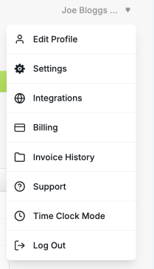
To enter time clock mode, begin by clicking your name on the top navigation bar.

A dropdown list of options will appear. Select **Time Clock Mode**.
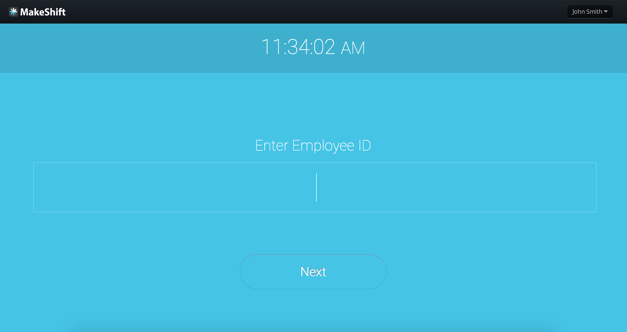
You are now in time clock mode. Employees can clock in and out for their shifts by entering their employee ID number here. Employees will not have any scheduling or approval access in this mode. If any employee ID is entered, it will time out after 15 seconds for security purposes. \*Desktop Time Clock Mode does not support employee photo punches.
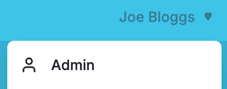
To return to MakeShift, click your name in the top right corner. A dropdown will appear. Select **Admin.**
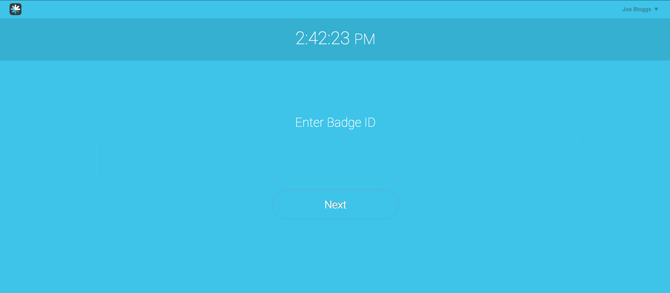
You will be asked to enter your password to return to MakeShift. This password protection ensures that employees cannot gain access to the manager app when using time clock mode. Once you have entered your password, click **Continue** to return to MakeShift.
*\*\*Note: If you are using Desktop Time Clock Mode, please remember to avoid using Autofill passwords. If an employee clears the history or browser, the account will no longer be accessible. However, it can be accessed if autofill passwords are available. Please use the same precautions as needed on any public computer.*
- [Getting Started](https://support.makeshift.ca/getting-started-guides?hsLang=en-ca#main-content)
- [Printable Guides (PDF)](https://support.makeshift.ca/getting-started-guides?hsLang=en-ca#printable-guides-pdf)
- [General](https://support.makeshift.ca/general?hsLang=en-ca#main-content)
- [FAQ](https://support.makeshift.ca/general?hsLang=en-ca#faq)
- [Admins/Managers](https://support.makeshift.ca/admins-managers?hsLang=en-ca#main-content)
- [Account Details](https://support.makeshift.ca/admins-managers?hsLang=en-ca#account-details)
- [Company Account Settings](https://support.makeshift.ca/admins-managers?hsLang=en-ca#company-account-settings)
- [The Schedule](https://support.makeshift.ca/admins-managers?hsLang=en-ca#the-schedule)
- [Locations and Departments](https://support.makeshift.ca/admins-managers?hsLang=en-ca#locations-and-departments)
- [Employees](https://support.makeshift.ca/admins-managers?hsLang=en-ca#employees)
- [Analytics](https://support.makeshift.ca/admins-managers?hsLang=en-ca#analytics)
- [Time & Attendance](https://support.makeshift.ca/admins-managers?hsLang=en-ca#time-attendance)
- [MakeShift Live for iOS](https://support.makeshift.ca/admins-managers?hsLang=en-ca#makeshift-live-for-ios)
- [MakeShift Live for Android](https://support.makeshift.ca/admins-managers?hsLang=en-ca#makeshift-live-for-android)
- [ADP Client Resources](https://support.makeshift.ca/admins-managers?hsLang=en-ca#adp-client-resources)
- [BambooHR Client Resources](https://support.makeshift.ca/admins-managers?hsLang=en-ca#bamboohr-client-resources)
- [Quickbooks Time Client Resources](https://support.makeshift.ca/admins-managers?hsLang=en-ca#quickbooks-time-client-resources)
- [New MakeShift](https://support.makeshift.ca/admins-managers?hsLang=en-ca#new-makeshift)
- [Users/Employees](https://support.makeshift.ca/users-employees?hsLang=en-ca#main-content)
- [Android](https://support.makeshift.ca/users-employees?hsLang=en-ca#android)
- [iOS](https://support.makeshift.ca/users-employees?hsLang=en-ca#ios)
- [Web](https://support.makeshift.ca/users-employees?hsLang=en-ca#web)
- [Users/Employees FAQ](https://support.makeshift.ca/users-employees?hsLang=en-ca#users-employees-faq)
- [Video Tutorials](https://support.makeshift.ca/video-tutorials?hsLang=en-ca)
- [Apps](https://support.makeshift.ca/apps?hsLang=en-ca#main-content)
- [MakeShift Admin/Managers](https://support.makeshift.ca/apps?hsLang=en-ca#makeshift-admin-managers)
- [MakeShift Employees](https://support.makeshift.ca/apps?hsLang=en-ca#makeshift-employees)
- [Admins/Managers (BETA)](https://support.makeshift.ca/admins-managers-beta?hsLang=en-ca#main-content)
- [Location and Departments (BETA)](https://support.makeshift.ca/admins-managers-beta?hsLang=en-ca#location-and-departments-beta)
- [Employees (BETA)](https://support.makeshift.ca/admins-managers-beta?hsLang=en-ca#employees-beta)
- [The Schedule (BETA)](https://support.makeshift.ca/admins-managers-beta?hsLang=en-ca#the-schedule-beta)
- [Account Details (BETA)](https://support.makeshift.ca/admins-managers-beta?hsLang=en-ca#account-details-beta)
- [Contact Support](https://support.makeshift.ca/contact-support-now?hsLang=en-ca)
- [Enterprise](https://support.makeshift.ca/enterprise?hsLang=en-ca#main-content)
- [Time & Attendance for Enterprise Clients](https://support.makeshift.ca/enterprise?hsLang=en-ca#time-attendance-for-enterprise-clients)
[](https://makeshift.ca/)
Copyright ⓒ 2024 MakeShift | [Privacy Policy](https://makeshift.ca/privacy) | [Terms of Use](https://makeshift.ca/terms)
[mailto:email@email.com](mailto:email@email.com)